A USB flash drive makes it easy to move a presentation, back up family photos, or carry work files between computers. The risky moment often comes at the end: the file copy looks finished, so the drive gets pulled out before Windows has confirmed that it is safe to remove.
That shortcut may be harmless in some circumstances, but it is not a habit to rely on. Windows includes a removable-storage policy that controls how it handles write caching, and its safe-removal tools help ensure pending operations have finished before you disconnect a device. Understanding the Microsoft Windows flash drive eject policy makes it easier to choose the right setting and avoid preventable file problems.
The wider data-loss picture is worth keeping in mind, too. In a survey of 1,000 U.S. adults, Handy Recovery Advisor reported that 70.7% of respondents had experienced data loss at least once. That survey covers many kinds of data loss; it does not show that unsafe USB ejection caused those incidents. Still, it is a useful reminder to protect important files with safe habits and backups.
What Is the Windows Flash Drive Eject Policy?
Windows has two main removal policies for external storage devices: Quick Removal and Better Performance. They determine whether Windows caches disk writes for a device and, in turn, how you should disconnect it. Microsoft’s official removable-media policy guide explains the behavior of both options.
The distinction matters because finishing a copy dialog does not always mean every related operation has reached the physical device. An application, Windows, or the device itself may still be completing work. Proper ejection gives the operating system an opportunity to complete outstanding storage operations and release the drive.
Quick Removal vs. Better Performance
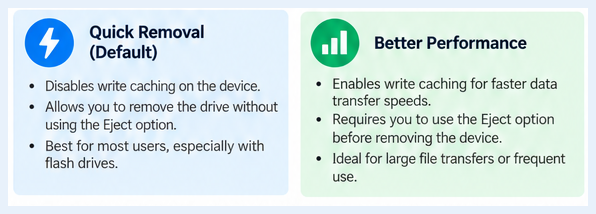
Illustration comparing Quick Removal and Better Performance
Quick Removal
Quick Removal is the default policy beginning with Windows 10 version 1809. With this policy, Windows avoids disk write caching for the external device so that it can generally be removed without using the Safely Remove Hardware workflow. The trade-off is that performance can be lower, particularly during write-heavy activity. Microsoft describes the default change and its trade-offs in its policy documentation.
Quick Removal is a sensible choice for many ordinary USB flash drives, where convenience is useful and maximum write speed is not the top priority. However, it is not a promise that every application has saved every change. Do not disconnect a drive while files are copying, an application is saving to it, or a status light indicates active writing. Safely ejecting remains the simplest routine for important data.
Better Performance
Better Performance allows Windows to use write caching to improve performance. Some data may be held temporarily before it is written to the device. Because of that, Microsoft says you must use Safely Remove Hardware before disconnecting a device configured for Better Performance; unplugging it first creates a risk of data loss.
This setting may help some external drives or write-heavy workflows, but the practical benefit depends on the device, connection, workload, and driver. It is not automatically the best option for every USB stick. If you select it, make safe ejection part of the workflow every time.
How to Safely Eject a Flash Drive in Windows 10 or Windows 11
Illustration of the Windows Safely Remove Hardware menu
The easiest method works across supported Windows versions:
- Finish copying or saving files to the USB drive, and close documents or apps that are using it.
- Select the Safely Remove Hardware and Eject Media icon in the taskbar notification area. If it is hidden, select Show hidden icons first.
- Choose Eject for the correct USB device.
- Wait for the Safe to Remove Hardware notification, or for the device to disappear from the menu.
- Disconnect the flash drive.
Microsoft documents this sequence in its Safely Remove Hardware support guide. You can also open File Explorer, select This PC, right-click the USB drive, and choose Eject. Menu labels can vary slightly depending on the device and Windows build, so check that you have selected the correct drive before removing it.
How to Check or Change the Removal Policy
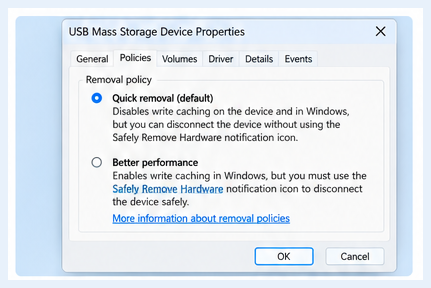
Illustration of the removable-drive Policies settings
To review the policy for a particular external drive:
- Connect the drive and identify its name or drive letter in File Explorer.
- Right-click Start and open Disk Management.
- In the lower pane, right-click the disk label for the external device and select Properties. Take care not to change settings for the wrong disk.
- Open the Policies tab. If it is not shown, Microsoft notes that some versions may require opening the drive’s properties through the Hardware tab first.
- Review the available option, choose Quick Removal or Better Performance if offered, and select OK.
The precise tabs can vary by Windows release, device, and driver. If the Policies tab or both options are not available, do not assume something is broken; use the setting Windows exposes for that hardware. The official Microsoft policy guide provides the current route and caveats.
What Can Go Wrong If You Unplug Without Ejecting?
The risk depends on the selected policy, whether a write is underway, the application, and the storage device. Possible outcomes include:
- An incomplete file: a copied video, document, or archive may be missing data or fail to open.
- Lost recent changes: an application may still be saving edits even if the file window looks idle.
- File-system errors: interrupted metadata updates can leave a drive needing a scan or repair.
- Confusing errors on the next connection: Windows may ask to scan the drive or report that the device was not removed properly.
An illustrative example: a designer copies a large project folder to a thumb drive before leaving the office. The progress window closes, but an editing program still has a file open on that drive. Pulling out the USB can interrupt the last write or leave the file unavailable on the next computer. Ejecting first, then checking that the confirmation appears, takes only a moment and removes much of the guesswork.
Troubleshooting: Why Won’t Windows Eject My USB Drive?
If Windows reports that the device is currently in use, treat the message as a clue rather than something to bypass immediately.
- Close files and apps. Save and close documents, photos, videos, spreadsheets, media players, terminals, and other programs that may be accessing the drive.
- Close File Explorer windows. A window showing the USB drive or a preview pane can sometimes keep a file handle open.
- Wait for background activity. Give copy, sync, backup, antivirus, and indexing jobs time to finish. Check for an activity light if the device has one, but do not rely on the light as your only safety check.
- Try Eject again. Use the taskbar’s Safely Remove Hardware menu or right-click the drive in File Explorer and choose Eject.
- If the device is still busy, sign out or restart. Save open work first. A restart can release a process that is holding the drive open.
- If the drive behaves abnormally, check it before further use. Follow Windows’ scan or repair prompts, and restore important data from a backup if needed.
Avoid randomly ending system processes or unplugging a drive during active writes. If the files are important and the drive appears physically damaged or repeatedly disconnects, stop writing to it and consider professional recovery advice.
Best Practices for USB Flash Drive Data Protection
A few simple habits reduce the odds of a frustrating surprise:
- Eject when you finish. Even when Quick Removal is selected, safe ejection is a dependable habit for valuable files.
- Never unplug during a transfer. Wait for copy, move, backup, or sync operations to finish.
- Close files stored on the USB. Some applications keep a document open or save changes in the background.
- Keep a second copy of important work. A USB drive is portable, not a backup strategy by itself. Use another drive or a reputable cloud backup for irreplaceable files.
- Use Better Performance only for a reason. If you enable write caching, follow Microsoft’s safe-removal instructions every time.
- Handle the hardware gently. Remove the plug by its housing and avoid bending or twisting the connector.
Frequently Asked Questions
Can I pull out a flash drive without ejecting it?
With Quick Removal, Windows is configured to allow removal without the Safely Remove Hardware process. Even so, do not remove a drive during a transfer or while an application is writing to it. For important files, use Eject and wait for confirmation.
Is Quick Removal better than Better Performance?
Neither is best for every device. Quick Removal favors convenience by disabling disk write caching for the external device; Better Performance allows caching but requires safe ejection. For everyday flash-drive use, Quick Removal is often a practical default. Choose based on workload and follow the corresponding removal steps.
Why is the Safely Remove Hardware icon missing?
The icon may be hidden in the taskbar overflow, or Windows may not recognize a connected removable device. Select Show hidden icons and check Microsoft’s instructions for making the icon visible. You can also try Eject from File Explorer.
Does ejecting a USB drive delete anything?
No. Ejecting tells Windows to finish pending operations and disconnect the device safely; it does not erase the stored files. Do not confuse Eject with format or delete commands.
Final Thoughts
The Microsoft Windows flash drive eject policy is a small setting with a practical purpose: balancing removable-storage performance with data safety. Quick Removal is the default on Windows 10 version 1809 and later, while Better Performance permits write caching and therefore requires safe ejection. The important habit is straightforward: finish transfers, close files, use Eject, and wait for confirmation before unplugging.
It is a few extra clicks, but it is a simple way to reduce avoidable file trouble. And because no removal policy replaces a backup, keep another copy of anything you cannot afford to lose.